Table of Contents
Indigo Touch For Web
Indigo includes an integrated web server that allows you to serve your own custom content, and it also includes a web-based alternative to Indigo Touch for iOS called Indigo Touch for Web or ITW. ITW is a Single Page Application (SPA) that runs entirely in a browser. ITW is not meant to be a replacement for the Mac Client – you can't configure devices or add variables for example – however, the most common Indigo functions are available. These include turning on/off devices, controlling thermostats, changing variable values and so on. Available features are listed below, and we have plans to include more features in the future!

ITW works by establishing a bidirectional connection to the Indigo Websocket API. ITW works on both desktop and mobile (mobile availability depends on configuration and whether you're connected locally via W-Fi or remotely via cellular).
Loading ITW
There are several ways to load ITW depending on your environment. The three most common being:
- the Indigo Reflector Service using your custom reflector address such as
https://my_reflector.indigodomo.netvia a securehttps://connection (the reflector service requires an Indigo up-to-date subscription). - a local loop-back address such as
http://localhost:8176orhttp://127.0.0.1:8176via an insecurehttp:connection. These connections are only valid when used on the same machine running the Indigo server (and obviously, won't work on mobile). - a direct IP address such as
http://10.0.1.123:8176orhttp://192.168.0.123:8176via an insecurehttp:connection.
Note that the custom port address (8176 above) may differ depending on the settings you use when launching the Indigo Server.
When you use a bare address like the examples above, the server will redirect the request and load the ITW homepage index.html so – depending on your browser – the address field will show localhost:8176/index.html or http://localhost:8176/index.html or something similar.
Interface Controls
When ITW loads, you'll be presented with the main view which has five tabs to choose from – Devices, Actions, Variables, Pages and Logs (Indigo schedules are not currently shown in ITW).
Tabs
Devices
- The Devices tab shows the devices in the Indigo database.
- Only devices with
Remote Displaychecked will be displayed. - Many device controls are available in ITW, including:
- On/off
- Lock/unlock
- Dimming
- Thermostat
Devices also have a special popup menu which is shown when you click the ellipsis icon … at the top of the device tile. This displays a menu with up to four options (depending on the type of device):
- Copy ID - This item will cause the device's ID to be copied to the clipboard. Due to the security of modern browsers, this feature will only work via
httpsconnections via the Indigo Reflector Service and viahttpwhen connecting using a local loopback address likelocalhostor127.0.0.1. - Refresh from server - ITW objects update automatically when data are changed in Indigo, but sometimes you might want to force the data to refresh for a specific device. Selecting this item will cause the device data to be refreshed.
- Send status request - only available for devices that support the Send Status Request feature in the Indigo Client.
- Show device JSON - this item will cause a pop-up window to display the entire JSON payload for the device.
Actions
- The Actions tab shows the action groups in the Indigo database.
- Only actions with
Remote Displaychecked will be displayed. - Clicking a displayed action button will cause the action to be executed.
Variables
- The Variables tab shows all the variables in the Indigo database.
- Only variables with
Remote Displaychecked will be displayed. - You can change the value of any variable (with the sole exception of
isDaylightwhich is read only). Clicking on a variable value will cause a dialog box to open where you can edit the value. Note: it's possible for the value to change on the Indigo server while you are editing it. In instances where this happens, the last write will take precedence. In other words, if you click save in ITW after the value has changed on the server, the ITW value will become the new value. - For select boolean values, a toggle value button will be displayed in the editing dialog–similar to Indigo Touch.
Triggers
- The Triggers tab shows all the triggers in the Indigo database.
- Triggers don't have a
Remote Displaycheckbox, so no triggers are hidden from view. - Disabled triggers are shown with a red border.
- Clicking a displayed trigger button will cause the associated events to be executed.
Schedules
- The Schedules tab shows all the schedules in the Indigo database.
- Schedules don't have a
Remote Displaycheckbox, so no schedules are hidden from view. - Disabled schedules are shown with a red border.
- Clicking a displayed schedule button will cause the associated events to be executed.
Pages
- The Pages tab shows control pages in the Indigo database.
- Only control pages with
Remote Displaychecked will be displayed. - Clicking a displayed control page button will cause the page to be loaded in a separate window or tab.
Logs
- The Logs tab shows the 25 most recent event log entries.
- New log messages will be displayed while the Logs tab is active.
- Debug, caution and warning messages will be colored appropriately.
In Folder
This dropdown list will list the folders appropriate to the tab selected. For example, the Actions tab will only display folders in your actions list in Indigo. Selecting a folder will filter the object list as it does in the Indigo client.
Name Contains
This text field allows you to filter the object list based on the object's name field. You can search by partial text – for example, entering ext will show both “Exterior” as well as “Text”.
Light Mode and Dark Mode
ITW currently supports two views – light mode and dark mode. You can toggle between the two using the button at the top right of the screen. Your choice is saved locally via your browser's local storage, so the next time you visit, ITW will display using your theme preference. If you clear your browser's cache (including local storage), your preference choice will be erased. This setting is also browser specific so if you rotate among different browsers or have multiple users, each can have its own unique preference saved.
| Light Mode | Dark Mode |
| | 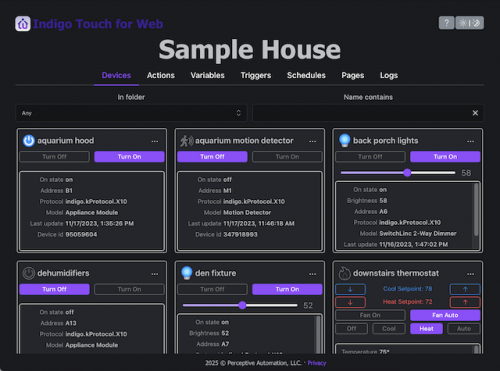 |
Loading A Specific Tab
By default, ITW will show the Devices tab when it first loads. If you would like to begin with a different tab, you can add a URL query argument to the end of the target URL (query arguments must be lowercase, and you must include index.html as a part of the URL for this feature to work).
Examples:
| Tab | Target URL | Default |
| Devices | http://localhost:8176/index.html?tab=devices | X |
| Actions | http://127.0.0.1:8176/index.html?tab=actions | |
| Variables | https://my_reflector.indigodomo.net/index.html?tab=variables | |
| Pages | http://192.168.0.123:8176/index.html?tab=pages | |
| Logs | http://10.0.1.123:8176/index.html?tab=logs |
Troubleshooting
If you don't see the ITW web interface displayed in your browser, there are several things you can check.
- be sure you're using the right URL security protocol:
https://when accessing via the Indigo Reflector Service, andhttp://via the other available means.
- be sure you've entered the correct address for your Indigo server and the port number you specified when you started the server (the default is 8176).
- if the proper tab wasn't selected when you loaded the app, be sure your query arguments are lowercase…
?tab=logsis valid,?tab=Logsis not.