Indigo Web Server Certificates
Node Red Example
The following example shows how to configure a Node Red flow that uses the Indigo Web Server (IWS) API to operate a lamp device. The example is only meant to show how to use a self-signed certificate and public key to enable the flow to connect to the IWS using *https* instead of *http* when using the IWS on a local network via *10.0.1.123*, *127.0.0.1*, or *localhost* (using the API via the Indigo Reflector Service uses a different CA-approved security certificate and the flow is configured the same as it would be using any API via *https*).
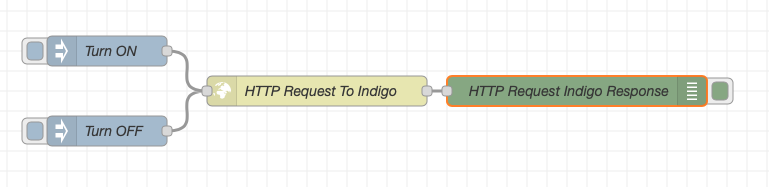 { width=600 }
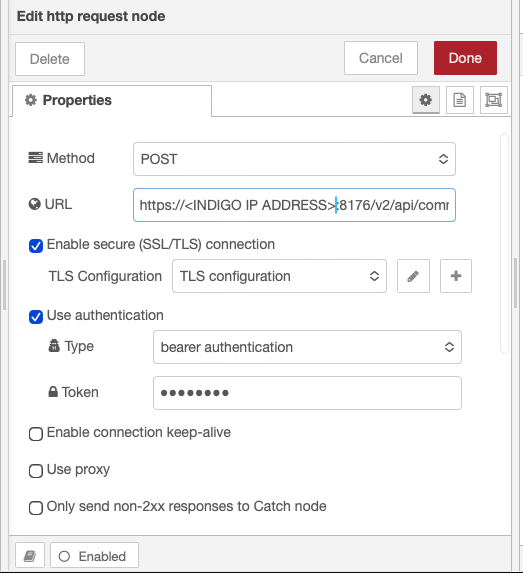
Using the flow via *https* requires a few settings. Enter the preferred URL to point at the local IWS address *10.0.1.123*, *127.0.0.1*, or *localhost* with the URL:
https://<INDIGO IP ADDRESS>:8176/v2/api/command/
for example,
https://10.0.1.123:8176/v2/api/command/
 { width=400 }
select TLS, and use bearer authentication along with a valid token key (from your Indigo Account Authorizations).
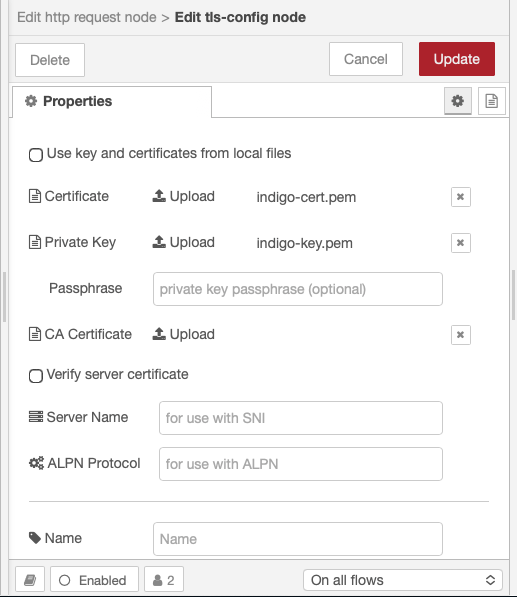
Then, use key and certificates from local files and point them to the certificate and public key files located in
/Library/Application Support/Perceptive Automation/Indigo 2024.2/Web Assets/cert/
 { width=400 }
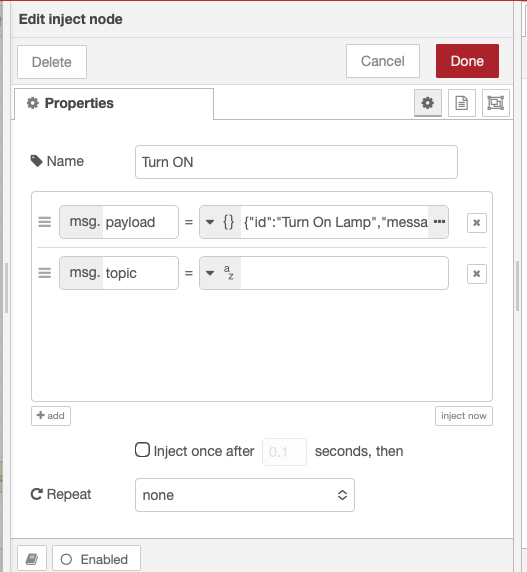
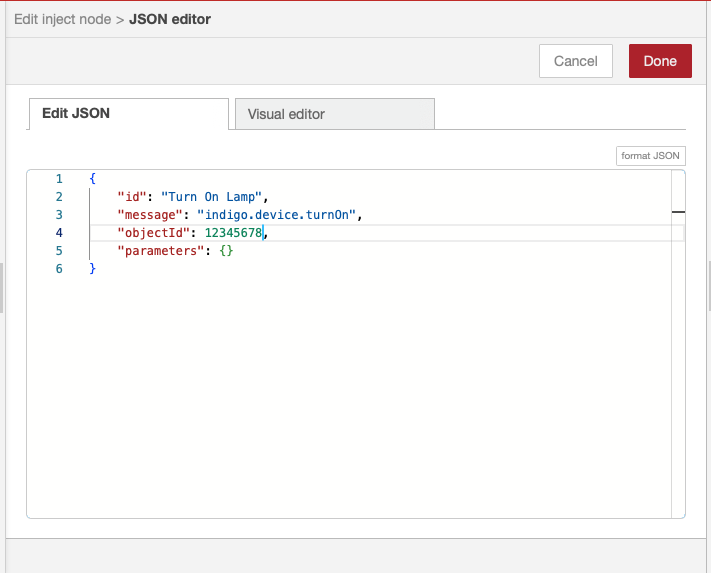
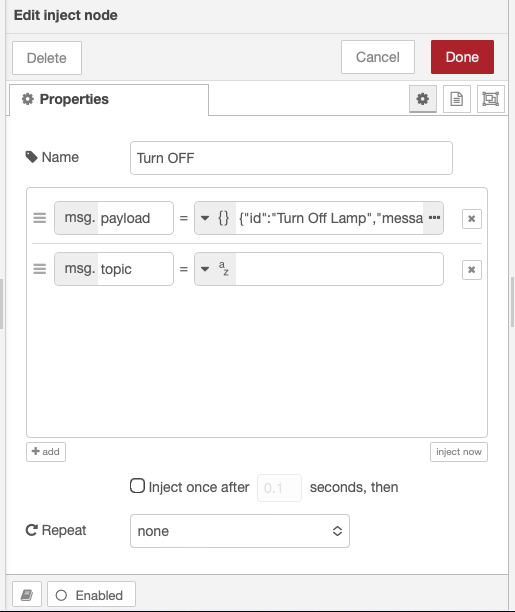
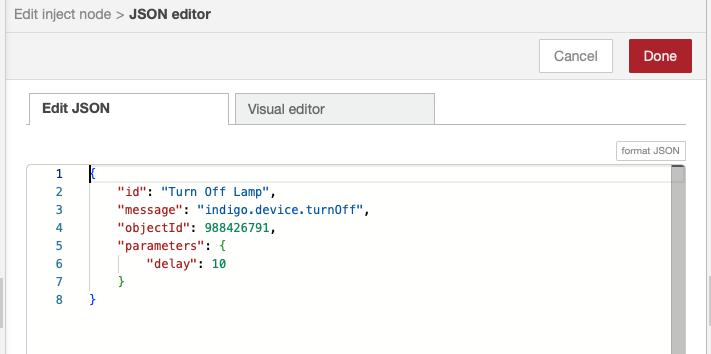
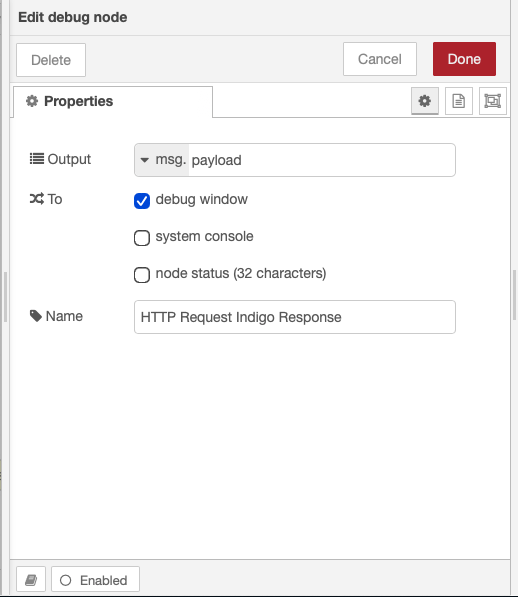
Several other screenshots complete the example:
|  { width=400 } |
| --- | --- |
|
{ width=400 } |
| --- | --- |
|  { width=400 } |
|
{ width=400 } |
|  { width=400 } |
|
{ width=400 } |
|  { width=400 } |
|
{ width=400 } |
|  { width=400 } |